
Getting started
To reset your password:
-
Go to the Client Control Panel https://id.noventiq.market/client.
-
An authorization form page will be displayed.
-
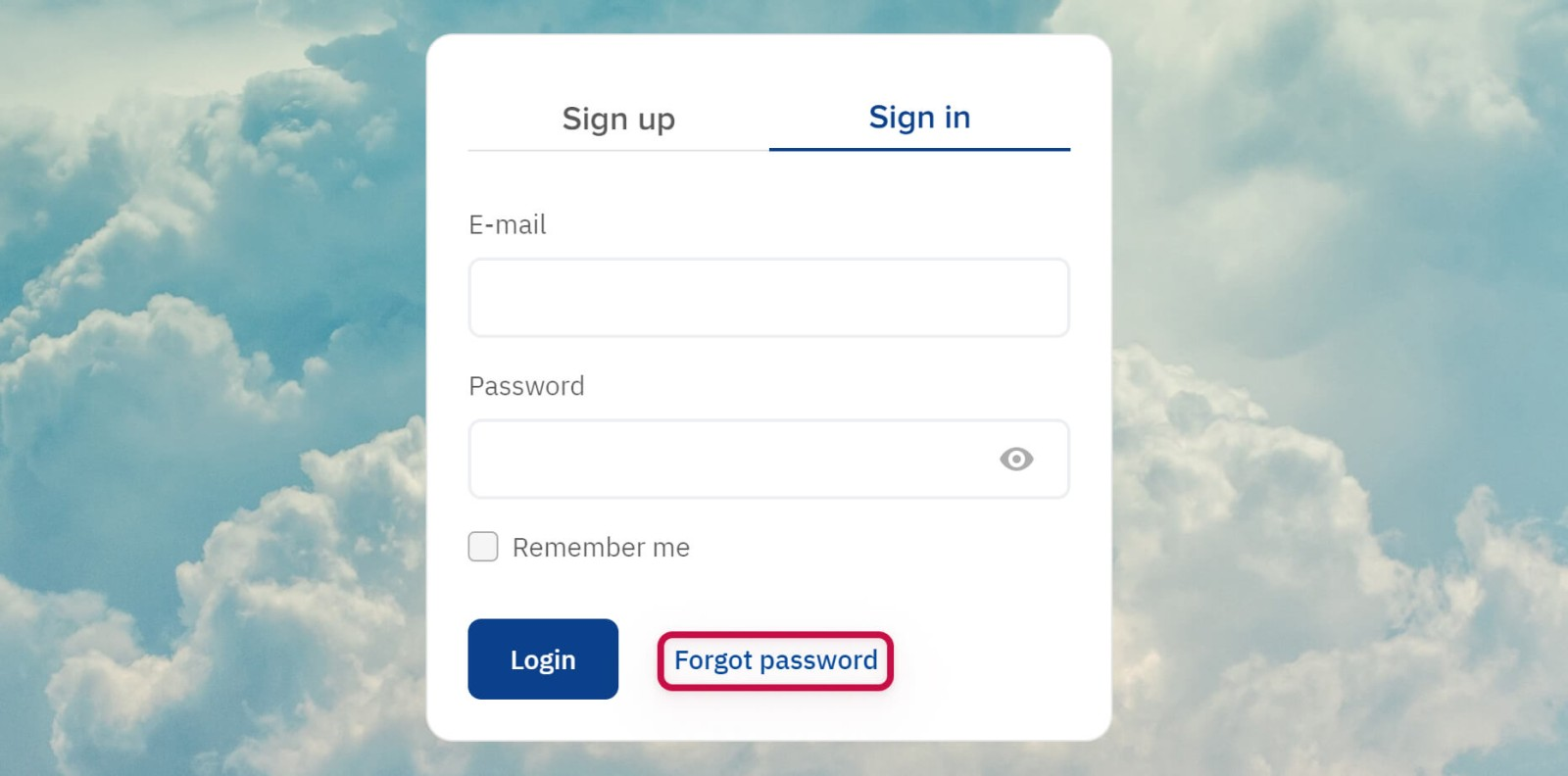
Click on the link Forgot password.
Filling in a password reset form
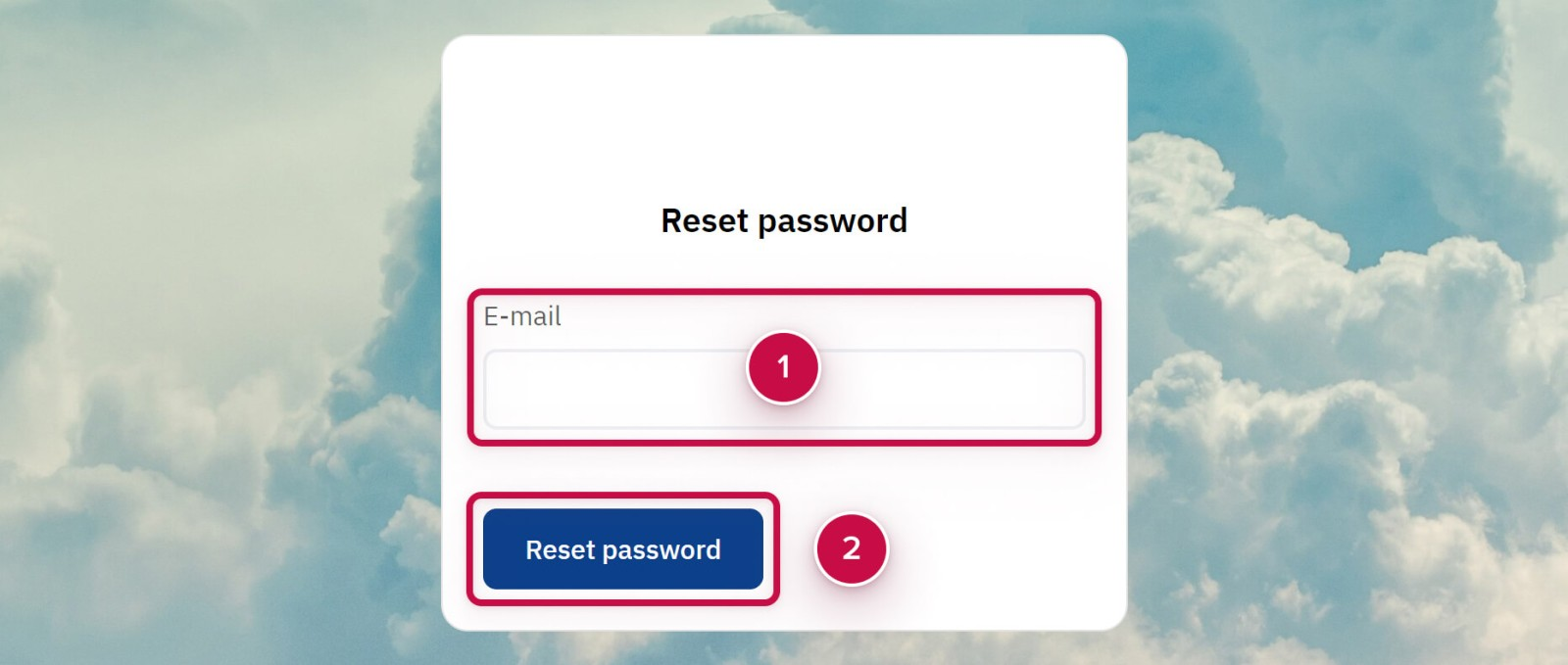
After you click on the link Forgot your password a password reset form will be displayed:
-
Enter your email ➀ specified during the registration.
-
Click Reset password ➁
Receiving a letter with instructions
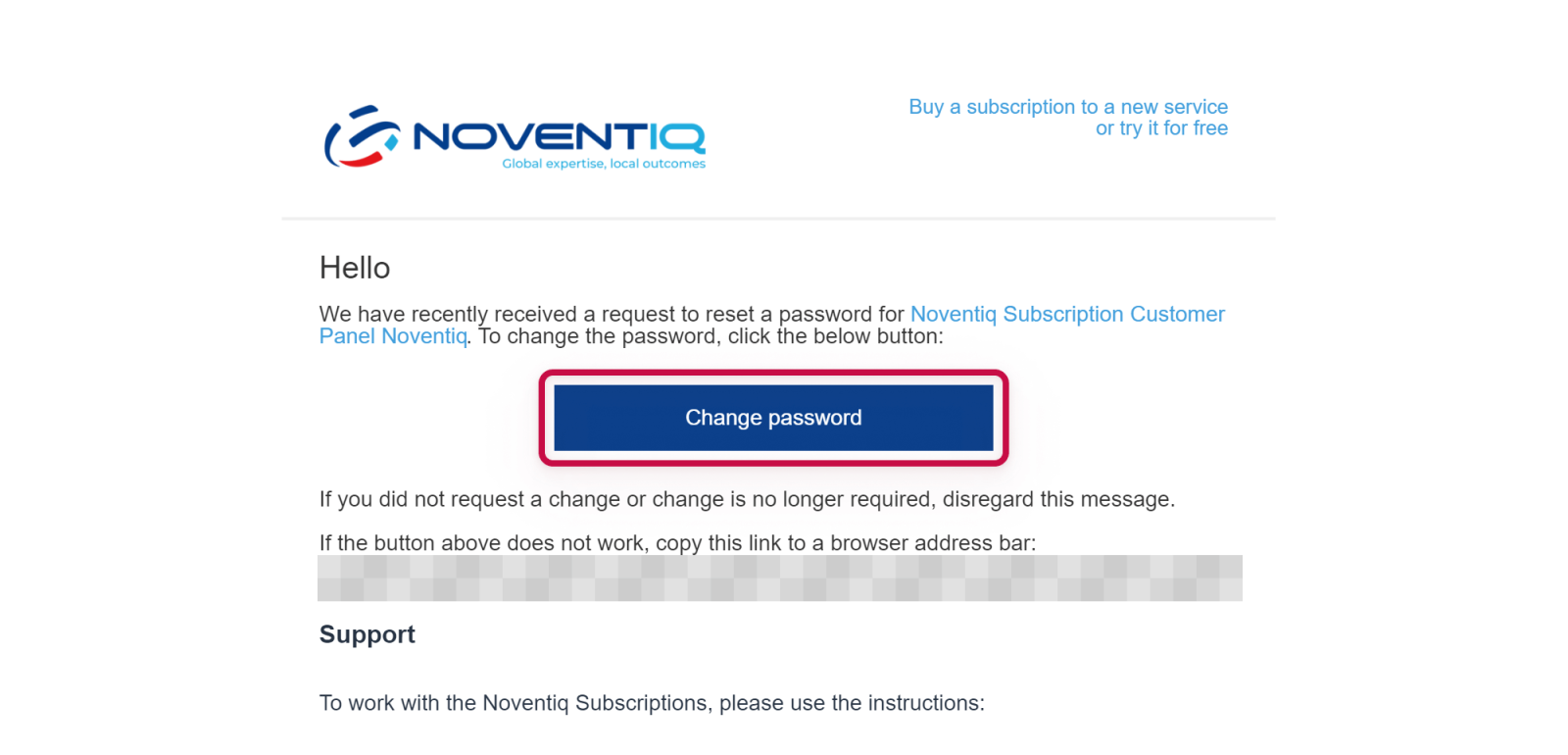
After clicking Send instructions in the password reset form, an e-mail with further instructions will be sent to the specified email:
-
Check the inbox of the specified email and find an e-mail with a subject: Resetting the password to the Client Control Panel.
-
Click Reset password in the e-mail.
Creating a new password
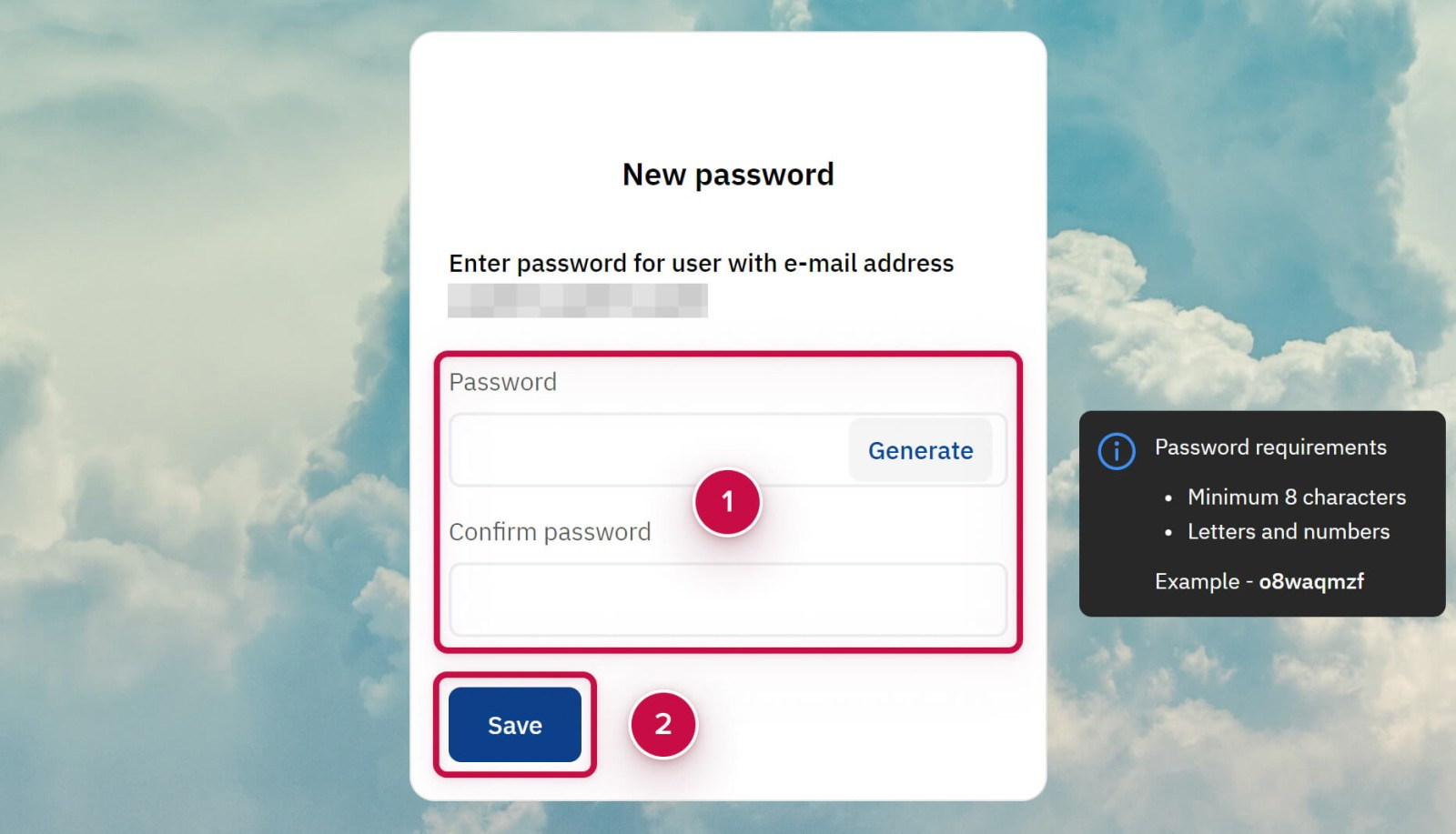
After clicking the link from the password reset email, a page for creating a new password will be displayed:
-
Enter a new password in the New password and Confirm your new password fields ➀.
2 ways to create a password:-
Create your own password. The password requirements are displayed in the Password requirements When a requirement is satisfied, the password is highlighted.
-
Generate a password. Click Generate to create the password automatically.
-
-
Don’t forget to save a new password for yourself in order to use it when signing in.
-
Click Save Password ➁.
Noventiq Market Indonesia
|
Customer Support |
|
|
Microsoft Technical Support |
|
|
Client Control Panel |
|
|
Catalog |