
For a pay-as-you-go (PAYG) subscription, you can set a monthly consumption limit (spending budget). When the budget is spent, the platform sends a notification to selected users of your account while the subscription continues to work. You can also set up an additional notification on a certain percentage of the budget is reached.
To set a spending budget for a pay-as-you-go (PAYG) subscription:
-
Open the Client Control Panel (https://kh.noventiq.market/client) and go through authorization process.
-
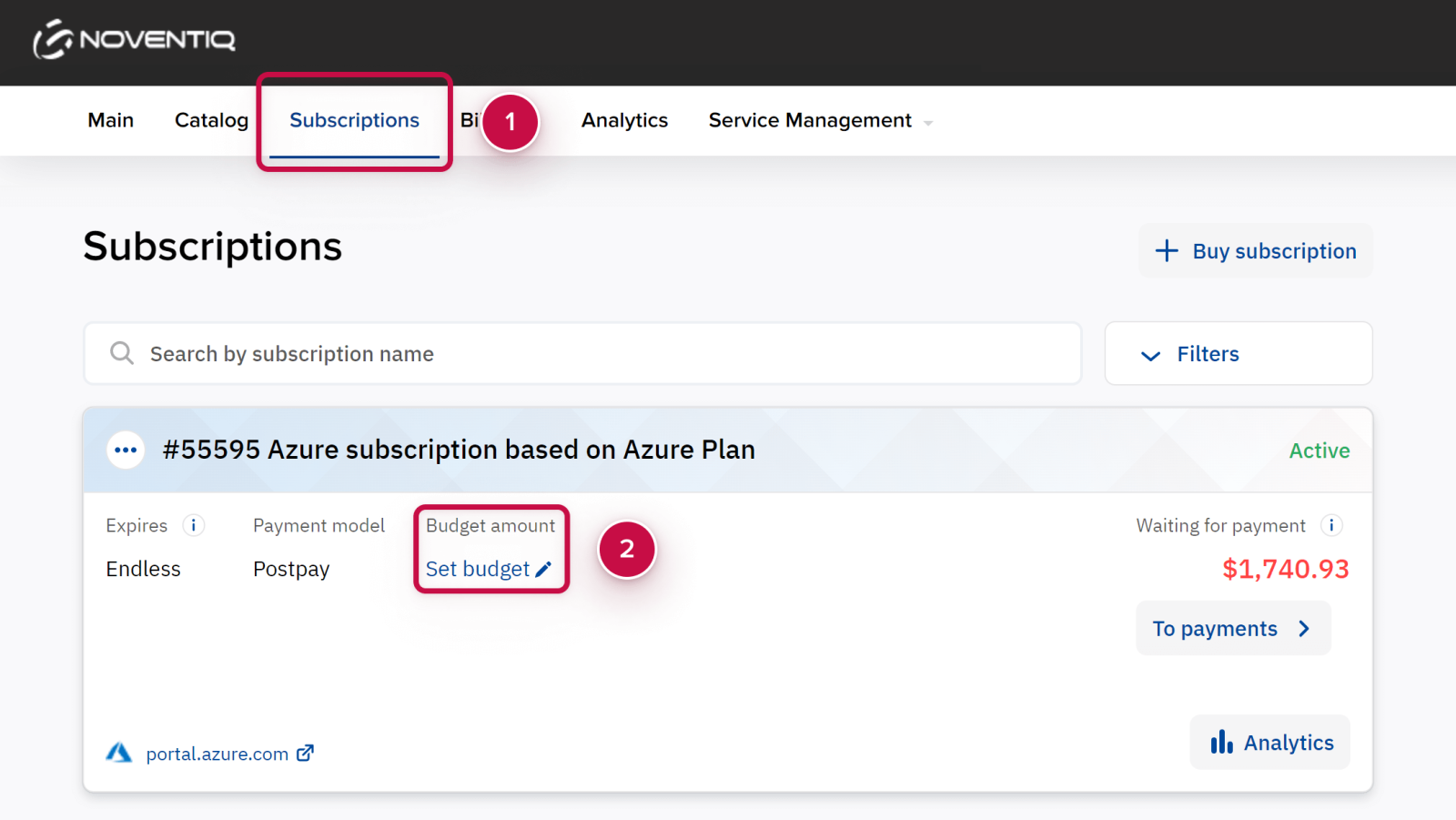
In the navigation menu, select Subscriptions.
-
Find the required subscription in the list and click a link in the Budget amount group.
The text of the link may be one of the following:-
Set budget — if a spending budget is not set for the selected subscription.
-
<Budget amount> — if the spending budget was set earlier for the selected subscription.
-
-
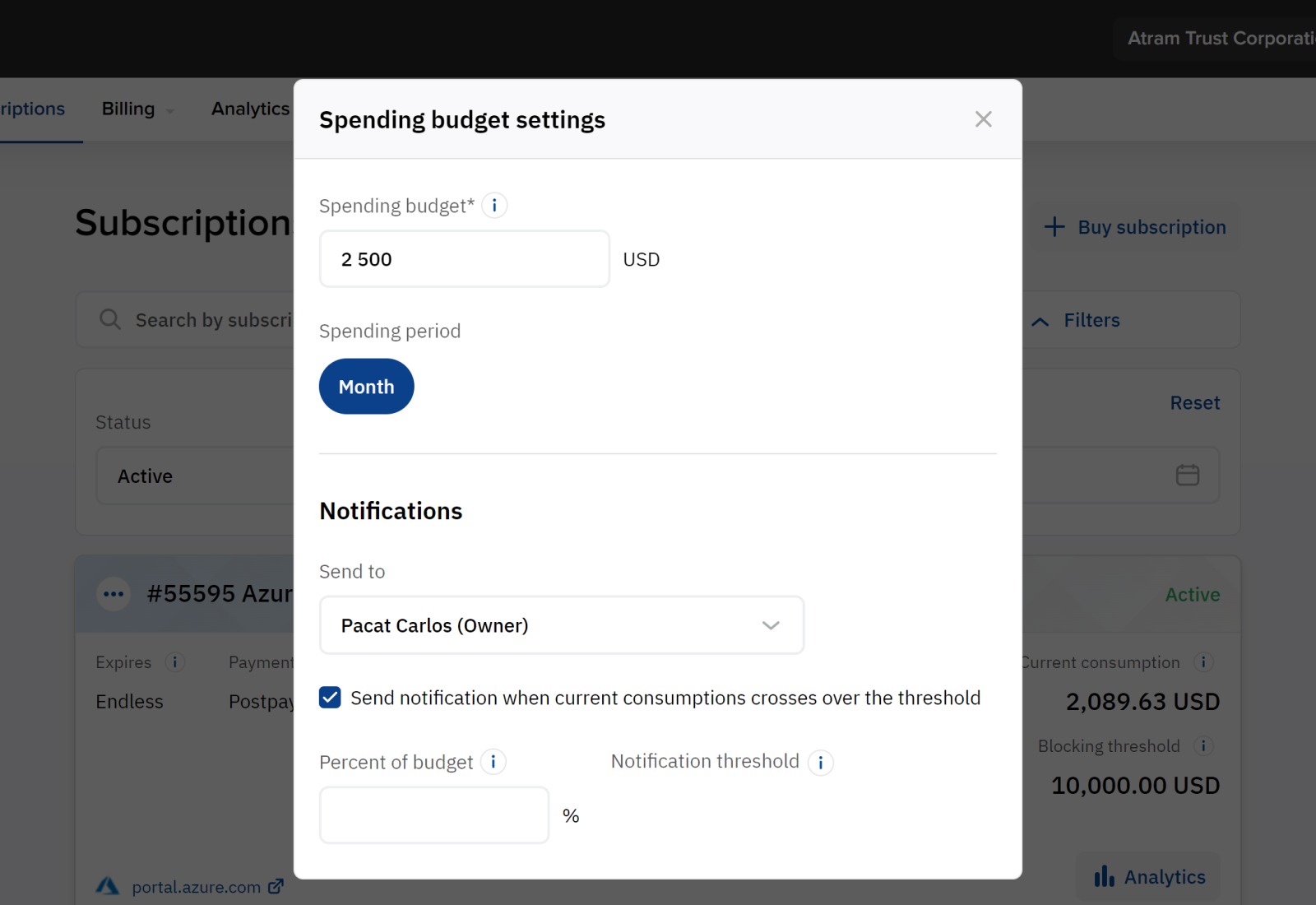
The Spending budget settings pop-up window is displayed.
-
In the Spending budget field, enter the monthly budget amount for the selected subscription.
-
In the Notifications group, set notifications on the spending budget:
-
In the Send to list, select the checkboxes next to the account users who need to receive the notifications when the specified budget is reached. The Owner is always selected.
-
If you want the platform to send an additional notification when a certain percentage of the budget is reached:
-
Select the Send notification when current consumption crosses over the threshold checkbox.
-
In the Percent of budget field, enter the number between 0.01 and 100 — the threshold percentage for sending a notification.
-
In the Notification threshold field, check the auto-calculated amount of the threshold for sending a notification.
-
-
-
Click Save.
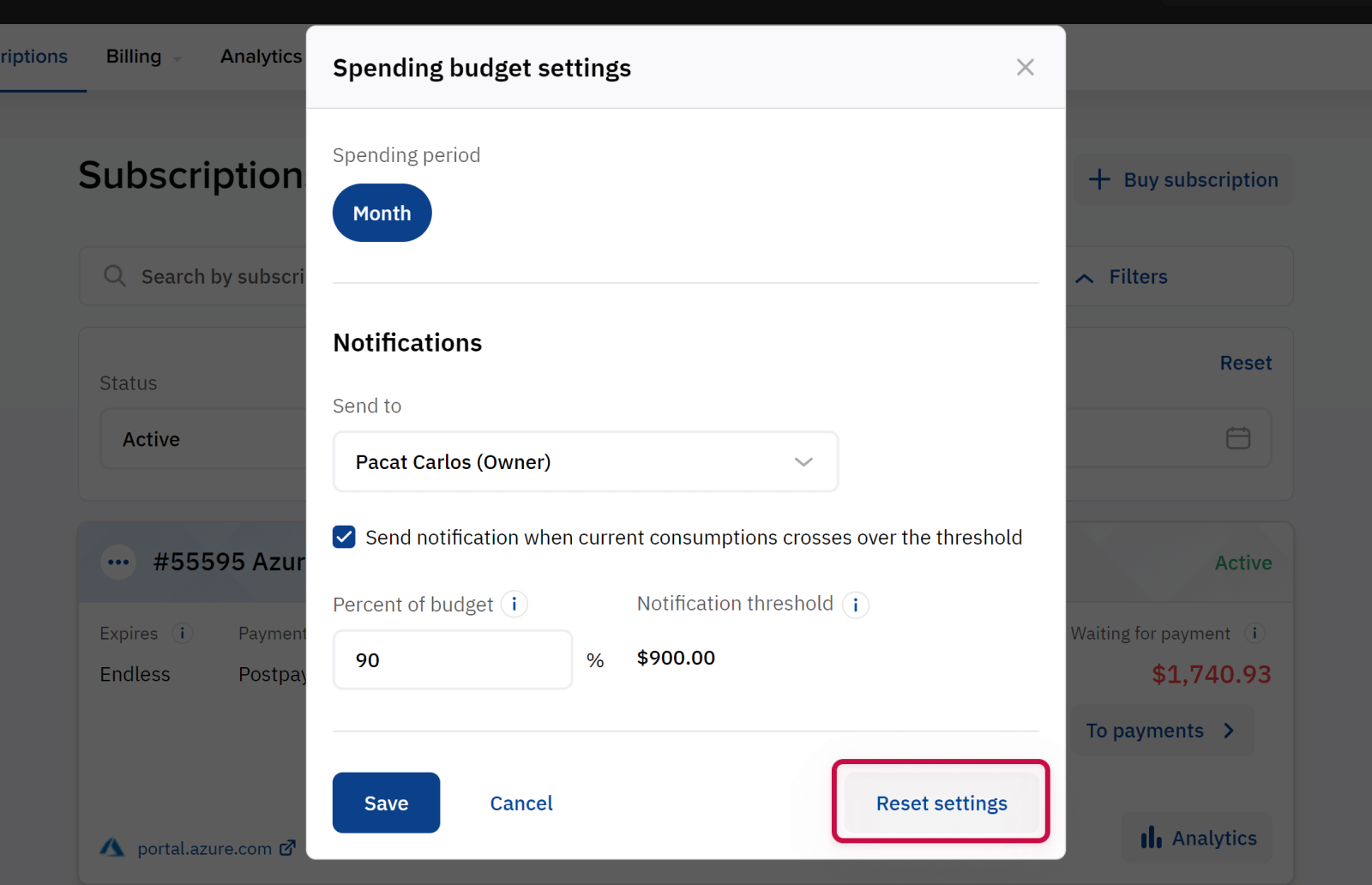
To clear a spending budget for a subscription and stop sending related notifications, in the Spending budget settings pop-up window, click Clear settings.
Noventiq Market Cambodia
|
Customer Support |
|
|
Microsoft Technical Support |
|
|
Client Control Panel |
|
|
Catalog (registration required) |