
Overview
By default, the subscription name matches the plan name. You can give your subscription a different name at the time of purchase or change it later. A custom name simplifies finding a specific subscription among multiple subscriptions for the same plan.
Changing the subscription name
-
Go to the Subscriptions section.
-
Find the subscription you want to rename in the list.
-
In the subscription menu, select Edit subscription name.
-
In the pop-up window, enter the new subscription name.
-
Click Save.
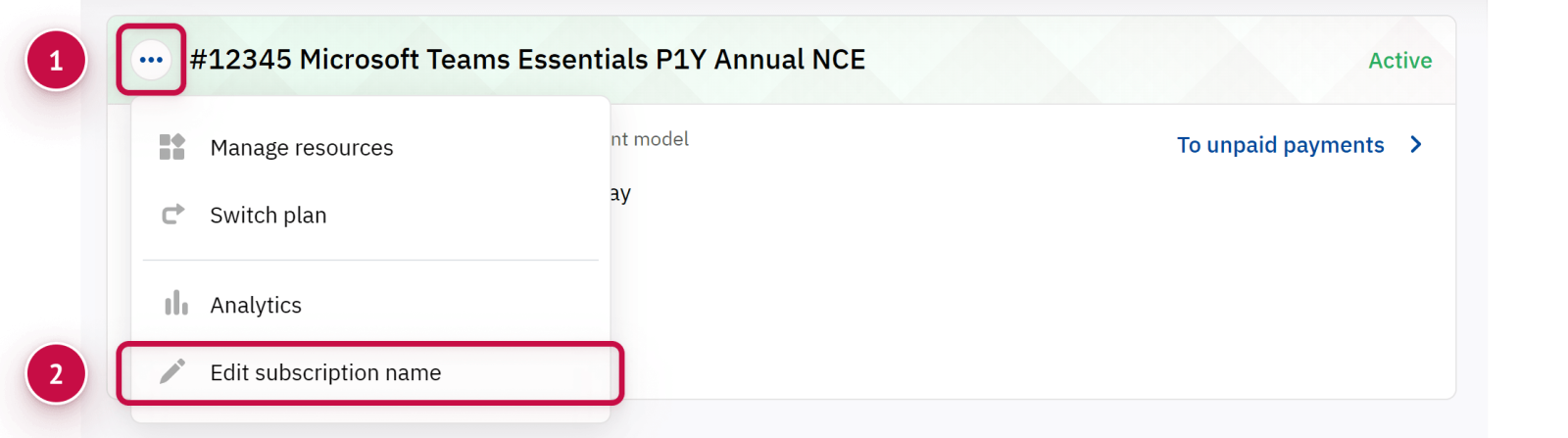
You can also rename the subscription on its details page by clicking 
Specifics of Microsoft subscriptions
When you purchase a Microsoft subscription, the same name is set on both the platform and Microsoft's side. Subsequent name changes in the the platform are also synchronized with Microsoft.
Noventiq Market India
|
Customer Support |
|
|
Microsoft Technical Support |
|
|
Client Control Panel |
|
|
Catalog |