
Overview
Stay Subscribed Offer is a retention initiative that encourages existing subscribers to maintain their subscription rather than cancel it.
When the customer attempts to cancel their subscription, a pop-up window is displayed offering them a discount on the next renewal period if they choose not to cancel.
How it works:
-
The customer clicks Cancel within the subscription management block on the parent order page.
-
If a Stay Subscribed Offer has been configured for the renewal product, the customer is shown a prompt (or offer) to keep their subscription and receive a discount on their next renewal.
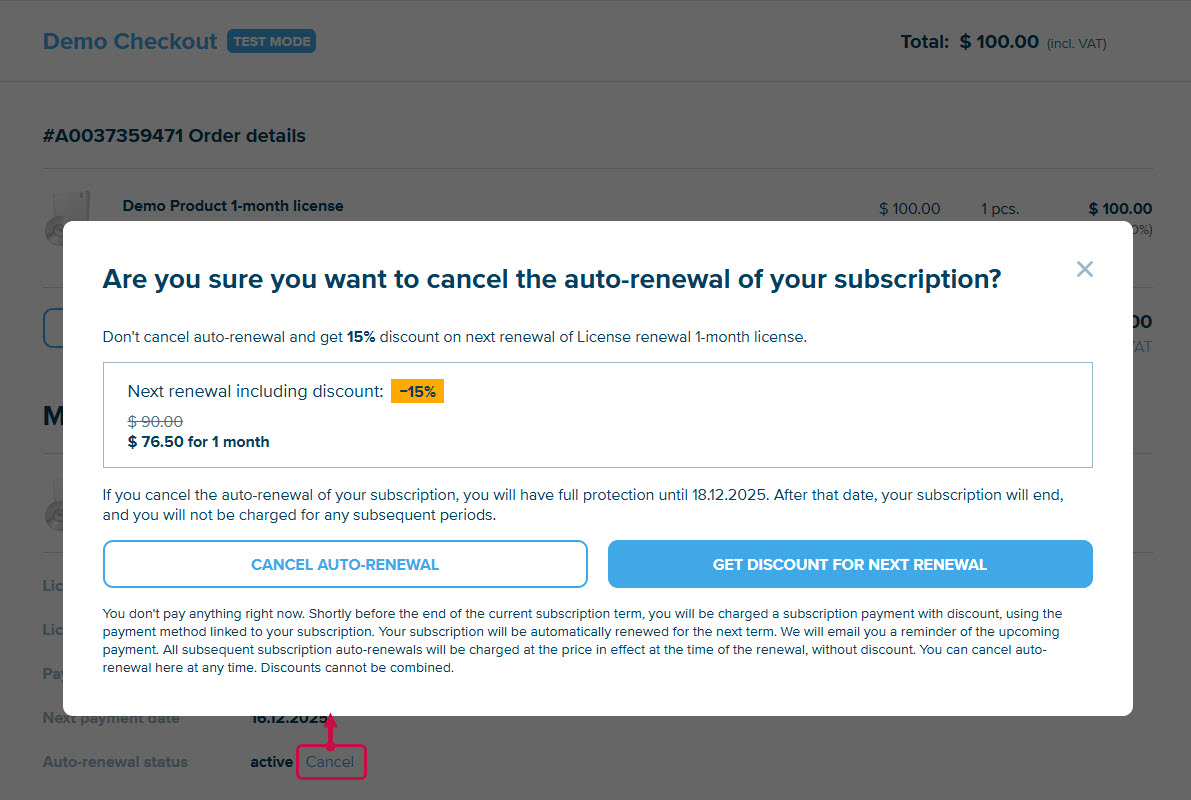
Discount offer on subscription cancellation attempt
-
If the customer declines the offer, the subscription will be canceled in the standard manner.
-
If the customer accepts the offer:
-
The discount configured for the Stay Subscribed Offer will be applied to the next renewal order.
-
If the renewal order (child order) has not yet been created at the time the offer is accepted, it will be created, and the subscription status will change to Awaiting Payment (not paid).
-
If configured beforehand, the system sends you a webhook on the event regarding the acceptance of the Stay Subscribed Offer (subscription.renewal_offer_order_cancelled).
-
Accepting the Stay Subscribed Offer will not affect the subscription expiration date or the auto-payment schedule, even if the child order was created earlier.
-
Upon accepting the Stay Subscribed Offer, the customer will receive an email notification with information about the updated renewal price.
-
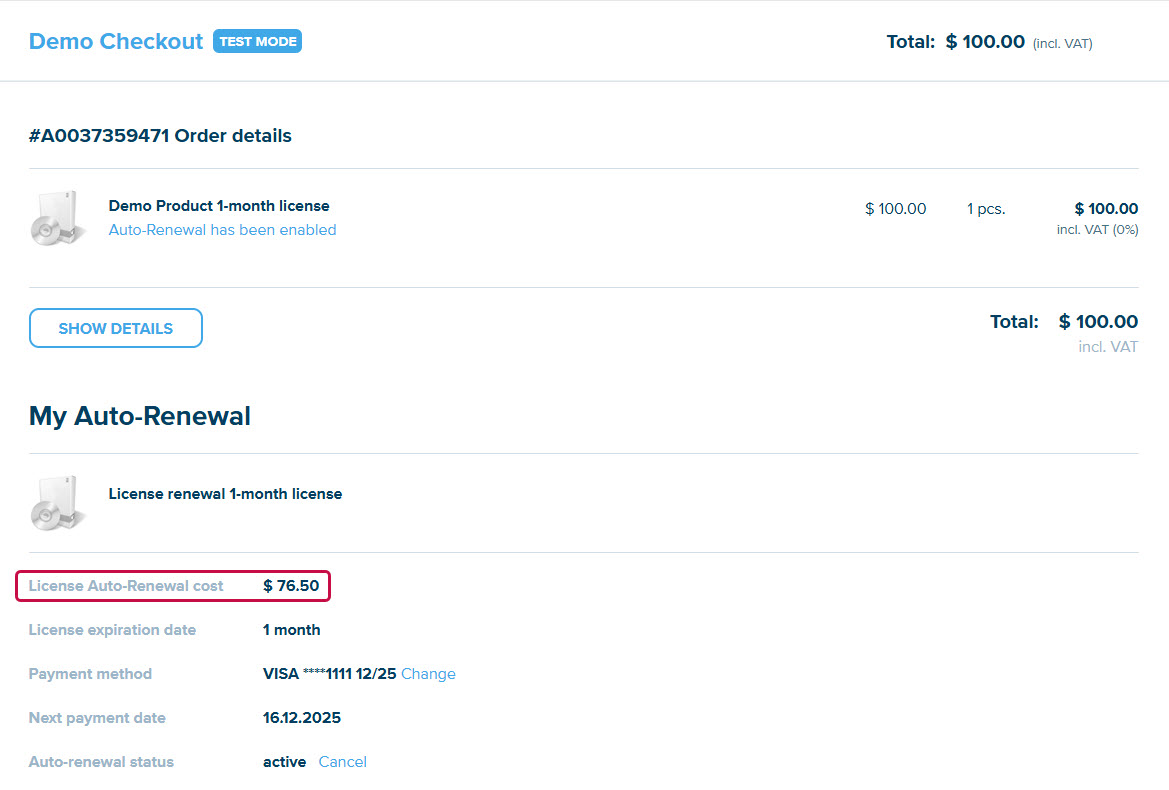
Discounted renewal price upon offer acceptance
-
If the customer, after accepting the offer, clicks Cancel again in the subscription management section, the offer window will reopen.
The text in this window is different from the first version—the customer will be asked to retain the discount they have already received.-
If the customer declines the offer, the subscription is canceled as usual.
However, if configured beforehand, the system sends you a webhook on the event regarding the cancellation of the Stay Subscribed Offer discount (subscription.renewal_offer_order_cancelled). -
If the customer accepts the offer, the offer window closes, and the discount is retained.
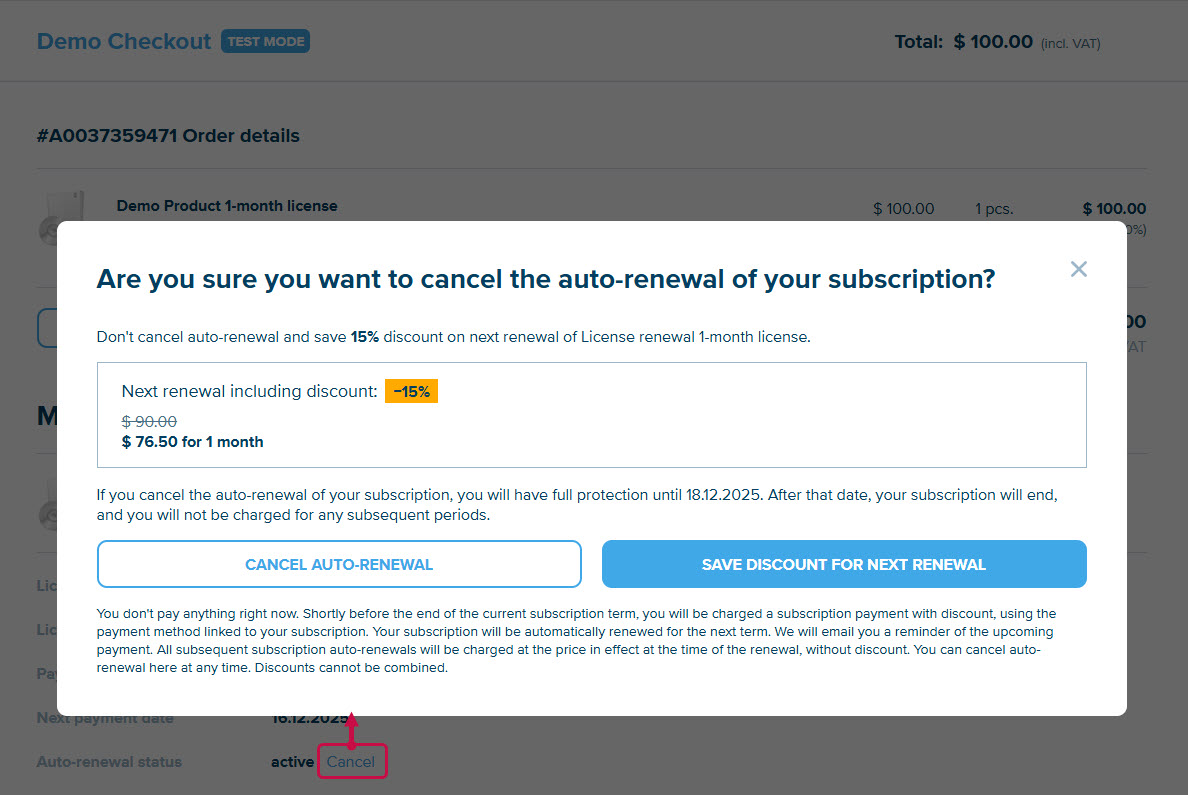
Offer to retain discount on subsequent subscription cancellation attempt after accepting Stay Subscribed Offer
-
Operational features
-
The Stay Subscribed Offer must be configured separately for each renewal product, including setting an individual discount amount.
-
The Stay Subscribed Offer is available for every subscription renewal. This means that if the customer attempts to cancel their order before each subscription renewal, they will see the Stay Subscribed Offer every time and be able receive the discount.
Discount mechanics
-
The Stay Subscribed Offer discount is borne by you. It is set individually for each renewal product and only takes effect if the customer accepts the Stay Subscribed Offer.
-
The discount applies only to the price of the single next renewal (it is not a permanent discount for the entire subscription lifetime).
-
The discount is applied using standard pricing logic (when calculating the renewal cost, the maximum available discount for the product will be applied if several discounts are available).
-
If the price of the next renewal was price-locked (or modified via API), the Stay Subscribed Offer discount will still apply.
-
The discounted price is visible via the API (orders, subsсriptions, webhook - wherever the discounted order price is displayed).
Pop-up window texts
The Stay Subscribed Offer pop-up window texts can be personally customized for your checkout page. They are common for all products (but the system can insert product names, prices, discount amounts, and subscription expiration dates).
The window has two content variations:
-
The first content variation is displayed if the Stay Subscribed Offer discount has not yet been applied to the next renewal.
-
The second content variation is displayed if the Stay Subscribed Offer discount has already been applied to the next renewal.
The text containing the renewal price information can be customized per product (upon request to Support):
-
Default settings:
-
The line "License renewal price" is displayed only if an unpaid renewal order (child order) exists.
-
The line value displays only the renewal price from the child order, for example: License renewal price: 153.00 RUB.
-
-
Customization options:
-
The line "Renewal terms" is displayed instead of "License renewal price" (the line name can be modified for the entire checkout page).
-
The renewal terms are displayed always, regardless of the existence of a child order.
-
You can set two text variations for the Renewal Terms:
-
A text when the Stay Subscribed Offer has NOT been accepted.
-
A text when the Stay Subscribed Offer HAS been accepted.
-
-
The text can be anything you want. You can insert:
-
The price of the next renewal with currency.
-
The duration of the next license with or without units of measure.
-
The price without discount and the discount amount in percentage - displayed only if the Stay Subscribed Offer has been accepted by the customer.
-
-
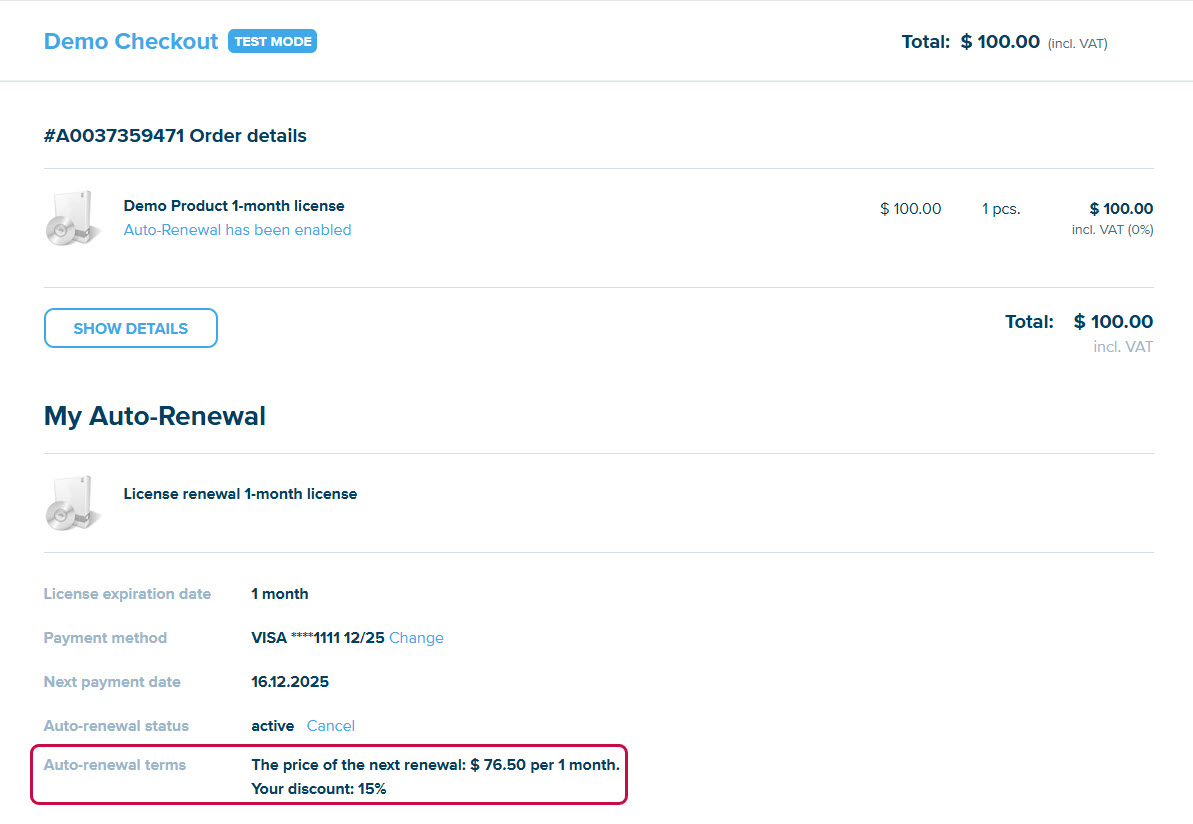
Subscription cancellation and reinstatement
If the customer accepts the Stay Subscribed Offer and receives the discount, but subsequently cancels the renewal, then upon subscription reinstatement - the price will be without the discount. However, upon a subsequent cancellation attempt, the Stay Subscribed Offer will be pop up again.
Webhooks
You can receive notifications (webhooks) on such events as acceptance and cancellation of the Stay Subscribed Offer.
By default, webhooks for these events are disabled. Please contact our Support Team to configure them.
For additional information on working with webhooks, please see:
Description of transferred parameters
Discount applying details
You can track the application of the Stay Subscribed Offer discount via Order History available in the ESupport portal.
When the customer accepts the Stay Subscribed Offer:
-
This message will be added to the parent order: The customer refused to cancel auto-renewal for [Product Name] by accepting the Stay Subscribed Offer. The next renewal [Child Order Number] will proceed with a [Discount Amount in %] discount.
-
This message will be added to the child order: The order price includes the Stay Subscribed Offer discount of [Discount Amount in %].
When the subscription is canceled after accepting the Stay Subscribed Offer:
-
This message will be added to the parent order: The customer refused the Stay Subscribed Offer for the auto-renewal of [Product Name]. The price of the next renewal [Child Order Number] has been recalculated without the [Discount Amount in %] discount.
-
This message will be added to the child order: The order price has been recalculated without the canceled Stay Subscribed Offer discount of [Discount Amount in %].
Additionally, if you use the Developer Account to manage products, you can find all the details on the Stay Subscribed Offer in the Order Export section. If the discount is applied, you can see "Discount for Stay-Subscribed offer" in the Discount Type field.
Get Started
To configure the Stay Subscribed Offer, please contact our Support team.
In your request, please specify:
-
Which renewal products should trigger the Stay Subscribed Offer.
-
The discount amount for each product.
-
If you wish to modify the texts for the offer pop-up window (both variations), please provide the new texts.
-
If you wish to display the Auto-Renewal Terms, please provide the line texts for:
-
The case where the Stay Subscribed Offer has NOT been accepted.
-
The case where the Stay Subscribed Offer HAS been accepted.
-
-
If you wish to receive webhooks on the events regarding acceptance or cancellation of the Stay Subscribed Offer, please specify this requirement.